

You can complete a full Xero payroll setup, connect to HMRC for RTI, add your employees and submit your first Full Payment Submission (FPS) in a single guided sequence. For a small team with straightforward pay structures, many businesses complete the core configuration in a few hours. The three actions to take right now:
- Gather your documents — PAYE reference, employee NI numbers, tax codes, pension staging date and bank details.
- Set up payroll accounts in Xero — add a payroll bank account, assign nominal codes and record any opening balances.
- Add employees and connect to HMRC — complete employee records, authorise Xero for PAYE and run your first pay run.
Pro Tip: Before you open a single Xero screen, pull together every employee’s starter declaration and tax code. Missing these two items causes more first-run rejections than anything else.
Xero’s own pre-setup checklist for UK payroll mirrors this sequence and is worth bookmarking before you begin.
Key takeaways
A complete Xero payroll setup requires gathering PAYE references and employee data upfront, configuring accounts and nominal codes correctly, and submitting the first FPS on or before pay day to avoid HMRC penalties.
PointDetailsGather documents firstCollect PAYE reference, NI numbers, tax codes and pension staging date before opening Xero.Match HMRC records exactlyCompany name and PAYE reference in Xero must be character-for-character identical to HMRC records.Submit FPS on timeSend the Full Payment Submission on or before pay day; late submissions attract HMRC penalties.Check Employment AllowanceEligible employers can reduce secondary Class 1 NICs by up to £5,000 per tax year via an EPS claim.PriceandaccountantsOffers end-to-end Xero payroll setup, RTI support and managed payroll for UK tech teams.
This article is general information, not a substitute for advice from a qualified financial advisor. Consult a qualified financial professional about your own circumstances before acting on anything here.
Table of Contents
- What do you need to gather before setting up Xero payroll?
- How do you set up payroll accounts and nominal codes in Xero?
- How do you configure pay items, working patterns and holiday settings?
- How do you set up auto-enrolment and workplace pensions in Xero?
- What employee fields does Xero need for correct RTI and tax treatment?
- How do you connect Xero to HMRC and authorise RTI submissions?
- How do you run, preview and post your first pay run in Xero?
- What ongoing payroll tasks should you schedule each month and year?
- What setup mistakes cause RTI rejections and how do you fix them?
- How do you migrate from another payroll to Xero?
- When should you run payroll in-house versus outsourcing it?
- Priceandaccountants handles your Xero payroll from day one
- Sources
What do you need to gather before setting up Xero payroll?
Skipping the document-gathering stage is the single most reliable way to stall mid-setup. Have everything below to hand before you open Xero’s payroll screens.
Company details
- Registered company name and address (must match HMRC records exactly)
- Employer PAYE reference number (format: 123/AB456)
- Accounts Office reference number (18 characters, found on your HMRC welcome letter)
- Company bank account number, sort code and account name
- Payroll calendar: weekly, fortnightly or monthly pay dates
Employee information
- Full legal name, date of birth and home address
- National Insurance number
- Tax code and tax basis (cumulative or week 1/month 1)
- Start date and pay frequency
- Bank account details for salary payments
- Completed starter checklist (formerly P46): Statement A, B or C
- Student loan plan type (Plan 1, Plan 2, Plan 4 or Postgraduate) if applicable
- Any attachment to earnings orders
Pension and auto-enrolment details
- Pension scheme name and provider
- Employer and employee contribution rates
- Pension staging date or duties start date (for new employers)
- Scheme reference number and submission method (API, CSV or manual)
Admin and access
- Xero login with payroll permissions enabled
- Multi-factor authentication (MFA) set up for all payroll users
- HMRC Government Gateway credentials (User ID and password)
Handling employee personal data during setup carries legal obligations. A consent and preference management framework helps you record lawful processing and document how employee data is collected and stored — worth reviewing before you import any staff records.
Pro Tip: Ask every employee to confirm their NI number and tax code in writing before you enter anything. A single transposed digit in an NI number will trigger an RTI rejection on your first FPS.
How do you set up payroll accounts and nominal codes in Xero?
Getting the chart of accounts right at this stage prevents reconciliation headaches every month. Follow the Xero Central organisation setup guide for the exact in-app navigation.
In-app steps to add a payroll bank account
- Go to Accounting > Bank Accounts > Add Bank Account.
- Search for your bank or add it manually.
- Link the account to your payroll nominal code (typically in the 8xx range for wages and salaries).
- Set the account currency to GBP.
- Enter the opening balance if you are migrating from another system.
Suggested nominal codes for payroll
These are generic suggestions; your existing chart of accounts may already have codes assigned. The key is consistency: use the same code every pay run so your PAYE liability account reconciles cleanly to what you pay HMRC each month.
Opening balances from a previous system
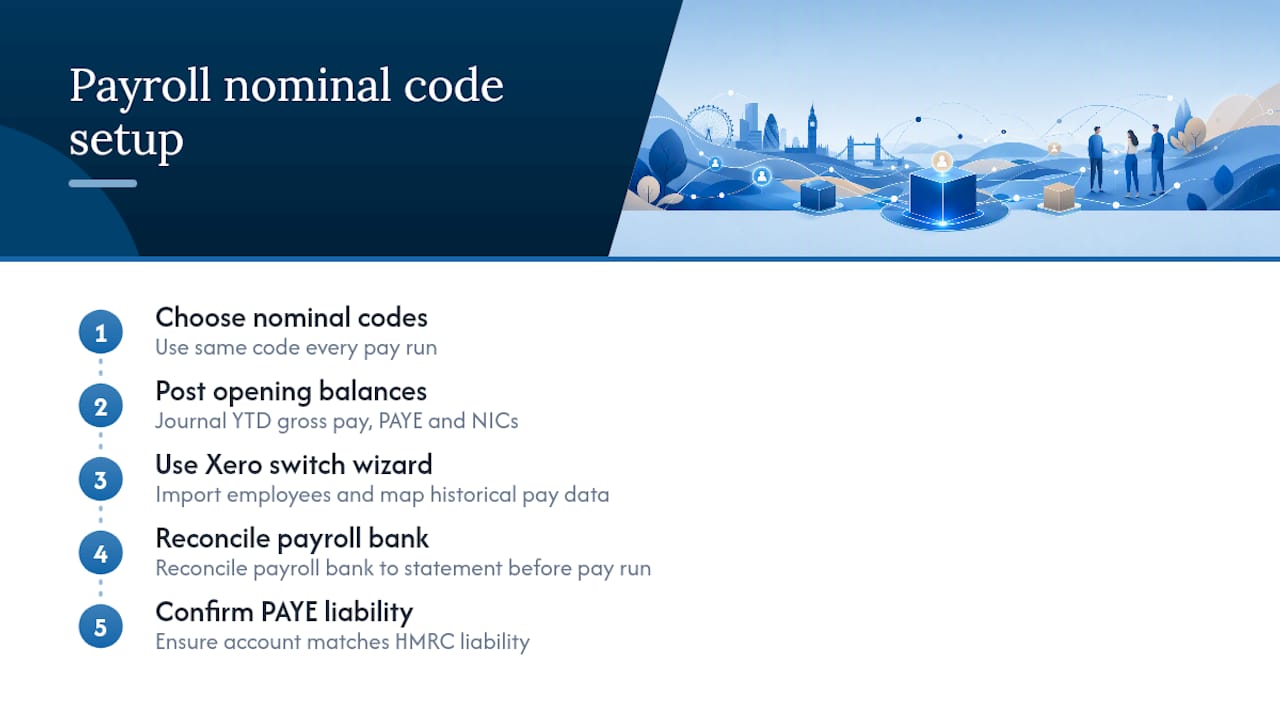
If you are mid-year and migrating from another payroll, post a journal to record year-to-date gross pay, PAYE deducted and NICs for each employee. This keeps your P60 figures accurate at year-end. Xero’s switching wizard (found under Payroll > Overview > Switch to Xero Payroll) can import employee records and map historical pay data, which reduces manual journal entries significantly.
Before running your first pay run, reconcile the payroll bank account balance to your actual bank statement and confirm the PAYE liability account matches what you owe HMRC.
How do you configure pay items, working patterns and holiday settings?
Pay items are the building blocks of every pay run. Get them wrong and every payslip that follows will be wrong too.
Types of pay items to create
- Ordinary time rate — for salaried or hourly employees
- Overtime — at 1x, 1.5x or 2x rate, depending on your contracts
- Bonuses and commission — taxed as earnings in the period paid
- Statutory pay — Statutory Sick Pay (SSP), Statutory Maternity Pay (SMP), Statutory Paternity Pay (SPP) and Statutory Shared Parental Pay (ShPP)
- Deductions — salary sacrifice, attachment to earnings, student loan repayments
Setting up working pattern templates
Working patterns tell Xero how many hours an employee works per day and per week. This drives leave accrual and part-time holiday calculations. Create a template for each common schedule in your business:
- Full-time (37.5 hours): 7.5 hours per day, five days per week
- Part-time (20 hours): 4 hours per day, five days per week
- Variable/zero hours: set to zero and override each pay run
Holiday settings
UK statutory minimum is 5.6 weeks per year (28 days for a full-time employee working five days per week). In Xero, set the accrual method to either a fixed annual entitlement or an accrual rate per hour worked. For zero-hours workers, the 12.07% accrual method is common, though HMRC guidance on rolled-up holiday pay has evolved — check the latest GOV.UK employment rights guidance for current rules.

Pro Tip: Build a pay template for each role type (e.g. “Junior Developer — Salaried”, “Warehouse Operative — Hourly”) and assign it to new employees at the point of hire. It takes two minutes to set up and saves you re-entering the same pay items every time you onboard someone.
How do you set up auto-enrolment and workplace pensions in Xero?
Auto-enrolment is not optional, and Xero’s pension setup is where many small employers make their first compliance mistake.
Step-by-step pension configuration
- Go to Payroll > Pension and click Add Pension Scheme.
- Enter your pension provider name, scheme reference number and contact details.
- Set the employer contribution rate (minimum 3% of qualifying earnings).
- Set the employee contribution rate (minimum 5% of qualifying earnings, totalling 8%).
- Enter your staging date or duties start date.
- Choose your contribution basis: qualifying earnings, total earnings or basic pay.
- Save and assign the scheme to eligible employees.
What Xero handles automatically
- Assessing employee eligibility each pay run (age and earnings thresholds)
- Generating opt-in and opt-out notifications
- Tracking re-enrolment dates (every three years)
- Calculating contributions based on the basis you selected
What Xero does not do
- Submit contribution files directly to every provider (some require a CSV upload or API connection — check with your provider)
- Send opt-out confirmation letters (you must do this separately)
- Monitor postponement periods automatically unless you configure them
Pension provider details you will need
- Scheme reference or policy number
- Provider’s submission method (PAPDIS, CSV or direct API)
- Contact email for contribution queries
Your staging date or duties start date determines when you must enrol eligible workers. If you are a new employer, your duties start on the day your first employee begins work. GOV.UK’s employer duties guidance covers eligibility thresholds and re-enrolment obligations in full.
What employee fields does Xero need for correct RTI and tax treatment?
Every field in Xero’s employee record has a downstream effect on either the FPS submission or the payslip calculation. Incomplete records are the primary cause of RTI rejections.
Mandatory fields
- Full legal name (as it appears on the NI card or HMRC records)
- Date of birth
- Home address (including postcode)
- National Insurance number
- Tax code and basis (cumulative or week 1/month 1)
- Start date
- Pay frequency (weekly, fortnightly, four-weekly or monthly)
- Bank account details for net pay
- Starter declaration (A, B or C)
Employment and tax declarations
- Student loan plan type and start date (if applicable)
- Attachment to earnings order details
- Statutory pay entitlements (e.g. SMP start and end dates)
- Director status (affects NI calculation method)
Recommended optional fields
- Assigned pay template and working pattern
- Additional voluntary deductions (e.g. salary sacrifice for cycle-to-work)
- Emergency contact details
Once you have saved an employee record, navigate to the Employee Summary screen and take a screenshot or PDF export. This gives you a paper trail if HMRC queries a submission later. For UK startup payroll obligations, getting these records right from day one is far less painful than correcting them after your first FPS.
How do you connect Xero to HMRC and authorise RTI submissions?
The HMRC connection is the step most small business owners find intimidating. It is actually straightforward once you have the right credentials.
Step-by-step authorisation
- In Xero, go to Payroll > HMRC Settings.
- Enter your Employer PAYE reference and Accounts Office reference.
- Enter the name and contact details of the person responsible for PAYE in your business.
- Click Connect to HMRC and sign in with your Government Gateway User ID and password.
- Authorise Xero to submit on your behalf.
- Save and confirm the connection.
Common connection failures and fixes
- Credential mismatch: the Government Gateway login must belong to the account that holds your PAYE scheme. If you use an agent login, you need delegated authority set up first.
- PAYE reference format error: Xero expects the reference in the exact format HMRC issued it. Check for spaces or slashes.
- MFA timeout: Government Gateway sessions expire quickly. Complete the authorisation in one sitting.
- Company details mismatch: if your registered name in Xero differs from the name on your PAYE scheme, HMRC will reject the connection. Match them character for character.
If Xero itself is experiencing an outage, check Status before assuming the problem is with your credentials. Service incidents occasionally affect RTI submission queues, and the status page shows live incident updates.
Pro Tip: Set up delegated HMRC access for your accountant at the same time you authorise Xero. If a submission fails and you need help quickly, your accountant can act without waiting for you to share credentials.
How do you run, preview and post your first pay run in Xero?
The first pay run is where everything you have configured gets tested. Work through it methodically.
Step-by-step first pay run
- Go to Payroll > Pay Runs > New Pay Run.
- Select the pay period and pay date.
- Review the draft payslips for each employee — check gross pay, tax, NICs and pension.
- Verify student loan deductions and any attachment to earnings.
- Confirm pension contributions match your scheme settings.
- Click Post Pay Run once you are satisfied.
- Xero will prompt you to submit the FPS to HMRC — do this on or before the pay date.
- Download payslips and distribute to employees.
Pre-post checklist
- Tax codes match the starter declarations entered
- Pension contributions are calculating on the correct earnings basis
- Student loan deductions are active for the right employees
- Net pay figures match what you intend to pay into employee bank accounts
- The pay date falls within the correct tax week or month
FPS timing
Submit the FPS on or before the date employees are paid. Late FPS submissions attract HMRC penalties after the first month of trading. If you discover an error after posting, you cannot edit a posted pay run — you must create an amendment in the next pay run or contact HMRC directly for corrections to employee-level data.
If the FPS is rejected
Common rejection codes and fixes:
- NI number not found: verify the number with the employee and correct it in their record before resubmitting.
- Tax code invalid: check HMRC’s current tax code list and update the employee record.
- Duplicate submission: Xero may have submitted twice during a connection issue. Check the FPS history before resubmitting.
Pro Tip: Run a “shadow” pay run in a test period before your live first run. Create a dummy pay period, check the calculations, then delete it. It costs nothing and catches configuration errors before they reach HMRC.
What ongoing payroll tasks should you schedule each month and year?
Payroll does not stop after the first pay run. A short monthly and annual routine keeps you compliant and audit-ready.
Monthly tasks
- Run the pay run and submit the FPS on or before pay day
- Reconcile the PAYE liability account to the amount owed to HMRC
- Pay HMRC by the 19th of the following month (22nd for electronic payments)
- Upload pension contribution files to your provider
- Issue payslips to all employees
When to submit an Employer Payment Summary (EPS)
Submit an EPS when you have no employees to pay in a period, when you are reclaiming statutory payments, or when you are claiming Employment Allowance. Employment Allowance reduces your secondary Class 1 NIC liability by up to £5,000 per tax year — claim it via the EPS at the start of the tax year if you are eligible.
Year-end tasks
TaskDeadlineSubmit final FPS for the tax yearOn or before last pay date in MarchIssue P60s to all employeeswithin deadlines set by HMRCReconcile payroll figures to HMRC recordsApril–MayConfirm Employment Allowance claim for new yearFirst EPS of new tax year
For a full payroll compliance checklist covering both monthly and annual obligations, the Priceandaccountants guide for UK SMEs covers the statutory deadlines in detail.
What setup mistakes cause RTI rejections and how do you fix them?
Most RTI rejections trace back to one of four errors made during initial configuration.
Common mistakes and immediate fixes
- Wrong NI number: a single transposed digit causes an immediate rejection. Fix: correct the NI number in the employee record and resubmit the FPS.
- Incorrect tax code: using the previous employer’s tax code without a P45 or starter declaration leads to under- or over-deduction. Fix: apply the emergency tax code (1257L W1/M1) until HMRC issues a correct code.
- Company details mismatch: if your Xero organisation name or PAYE reference does not match HMRC’s records exactly, the connection will fail. Fix: update Xero’s organisation settings to match the HMRC PAYE scheme record character for character.
- Wrong pension staging date: entering an incorrect staging date can trigger auto-enrolment too early or too late, creating compliance exposure. Fix: verify the date against your original Pensions Regulator letter and correct it before the first pay run that includes pension contributions.
Prevention measures
- Run a dry-run pay run in a test period and review every line before going live.
- Reconcile opening balances against your previous payroll records before the first live run.
- Ask employees to confirm NI numbers and tax codes in writing.
Pro Tip: If you are unsure whether a service outage is causing a submission failure rather than a data error, check status.xero.com first. Resubmitting during an active incident can create duplicate FPS records.
How do you migrate from another payroll to Xero?
Migration mid-year is more common than most guides acknowledge, and it is manageable if you follow a clean sequence.
Step-by-step migration path
- Export a full payroll report from your old system: year-to-date gross pay, PAYE deducted, employee NICs, employer NICs and pension contributions per employee.
- In Xero, go to Payroll > Overview > Switch to Xero Payroll to access the switching wizard.
- Import employee records using the wizard’s CSV template.
- Map your old nominal codes to Xero’s chart of accounts.
- Post opening balance journals for year-to-date payroll liabilities.
- Reconcile the imported figures against your old system’s reports before running the first live pay run.
Migration checklist
- Reconciled payroll ledger from the old system
- Employee year-to-date gross pay and deductions
- Statutory payment history (SSP, SMP, SPP)
- Pension contribution history per employee
- Outstanding PAYE liabilities and payment dates
Xero’s product ideas portal tracks feature requests including bulk import improvements — worth checking if you have a large employee count and want to understand current import limitations before committing to a migration date.
Pro Tip: Time the migration to coincide with a month-end or a quiet payroll cycle — ideally April (the start of the tax year) when year-to-date figures reset to zero. Running parallel payroll records for the first live pay run gives you a cross-check and a fallback if something does not reconcile.
When should you run payroll in-house versus outsourcing it?
Running payroll in Xero yourself makes sense for small teams with straightforward, fixed pay structures. If you have five employees on monthly salaries with no complex benefits, the in-house route is entirely manageable once the setup is complete. The software handles the calculations; your job is data entry and submission timing.
The calculus shifts when complexity enters the picture. International hires, directors’ loan accounts, salary sacrifice schemes, frequent starters and leavers, or a founder who is also drawing dividends — these situations create enough edge cases that a misconfiguration costs more to fix than a managed payroll service would have cost to run. Compliance risk is also a factor: HMRC penalties for late or incorrect FPS submissions accumulate quickly, and the reputational cost of a payroll error with employees is immediate.
At Priceandaccountants, the firms we support most often start with in-house Xero payroll for the control it gives them, then bring us in when headcount crosses ten or when a new hire introduces a complexity they have not handled before. That handover is clean when the Xero configuration is solid from the start, which is exactly why getting the setup right matters. For a fuller comparison of the trade-offs, the outsourcing payroll guide covers the decision criteria for UK tech teams in detail.
Priceandaccountants handles your Xero payroll from day one
Xero payroll setup done properly takes a few hours. Done wrong, it costs weeks of corrections and potential HMRC penalties. Priceandaccountants offers a faster route: we configure your Xero payroll from scratch, connect it to HMRC, enrol your employees into a compliant pension scheme and hand you a fully documented payroll that is ready to run.

Our payroll service covers initial setup, RTI submission support, monthly pay run management and year-end P60 production. For growing tech teams, we also handle pension provider liaison and Employment Allowance claims so nothing slips through. Every engagement includes handover documentation so your team can take over if you choose to bring payroll in-house later.
If you want payroll running correctly from the first pay date, speak to our team about a managed payroll package.
Sources
- Set up your organisation with payroll (UK) - Xero Central
- Gov
- Status
- OneTrust — consent and preferences