

Xero bank rules automatically pre-fill and one-click reconcile recurring transactions once a bank statement line matches conditions you define, cutting the time spent on routine reconciliation. They work across Spend, Receive and Transfer transactions. They suit predictable, repeat payments best, but still need a regular human check.
TL;DR:
- Build rules with specific payee, reference, or description conditions, then test them against recent statement lines before using them on live transactions.
- Xero checks rules from top to bottom, so place narrow conditions above broad matches; only the first matching rule applies to each statement line.
- Check VAT treatment regularly, especially for suppliers with invoices carrying different rates, since one rule may miscode mixed VAT treatments repeatedly.
- Editing or deleting a rule leaves past reconciled transactions unchanged, so correct earlier miscoding through a manual edit or journal entry instead.
- Skip rules when amounts or descriptions vary widely; inconsistent processor narratives and changing invoice numbers are safer to reconcile manually or match to invoices.
Table of Contents
- How to create a bank rule in Xero
- Conditions, fields and worked examples for common transactions
- Managing bank rules: editing, deleting and ordering
- Best practices and common mistakes with bank rules
- Bank rules and Xero’s JAX automation for MTD-ready records
- When an accountant should set up your bank rules
- Xero bookkeeping support
- FAQ
- Sources
How to create a bank rule in Xero
You can build a rule two ways: from the Reconcile screen when you spot a recurring line, or directly under Accounting, then Bank Accounts, then Manage Account, then Bank Rules. Both routes lead to the same setup screen, so pick whichever fits your workflow.
- Open Reconcile, select a statement line, and choose “Create rule”, or go to Bank Rules and click “New rule”.
- Choose the transaction type: Spend, Receive or Transfer, since each uses different condition options.
- Set matching conditions such as “contains”, “equals” or “starts with” against the payee, reference or description fields.
- Fill in the action fields the rule applies once matched: contact, account code, VAT tax rate and any tracking categories.
- Name the rule clearly, save it, then check it against a handful of recent statement lines before relying on it.
This structure follows Xero’s own guidance on creating a bank rule, which confirms that rules are available for Spend, Receive and Transfer transactions and that each rule sets the account, contact, tax rate and tracking in one step.
Pro Tip: Test a new rule on last month’s statement lines before applying it going forward: it shows you instantly whether the conditions are too broad or too narrow.
Conditions, fields and worked examples for common transactions
The condition you choose decides how reliably a rule fires. “Contains” is flexible but risky on short or generic text. “Equals” is precise but breaks the moment a reference changes. An amount range works well for fees that vary slightly but sit within a known band.
Each rule fills the same four fields every time it matches: contact, account code, VAT tax rate and tracking category. Getting these right matters beyond tidiness, since the tax rate feeds directly into your VAT return and Making Tax Digital records.
- Supplier payment: reference contains the supplier’s name, action sets the contact, the relevant expense code and the correct VAT rate.
- Card processing fees: description contains the payment provider’s name, action codes it to bank charges with no VAT applied.
- Recurring income: reference equals a specific client invoice prefix, action matches it to the correct income code and sales tax rate.
Skip a rule when amounts or descriptions vary too much. Irregular invoice numbers or inconsistent narratives from a payment processor are better reconciled manually or matched against an invoice.
Managing bank rules: editing, deleting and ordering
Rules need occasional upkeep as suppliers, customers and account structures change. Editing or deleting a rule never alters transactions already reconciled under it, so you can adjust freely without fear of disturbing your accounts, according to Xero’s guidance on how to edit or delete a bank rule.
- Edit a rule from the Bank Rules list or directly from Reconcile when you notice it misfiring.
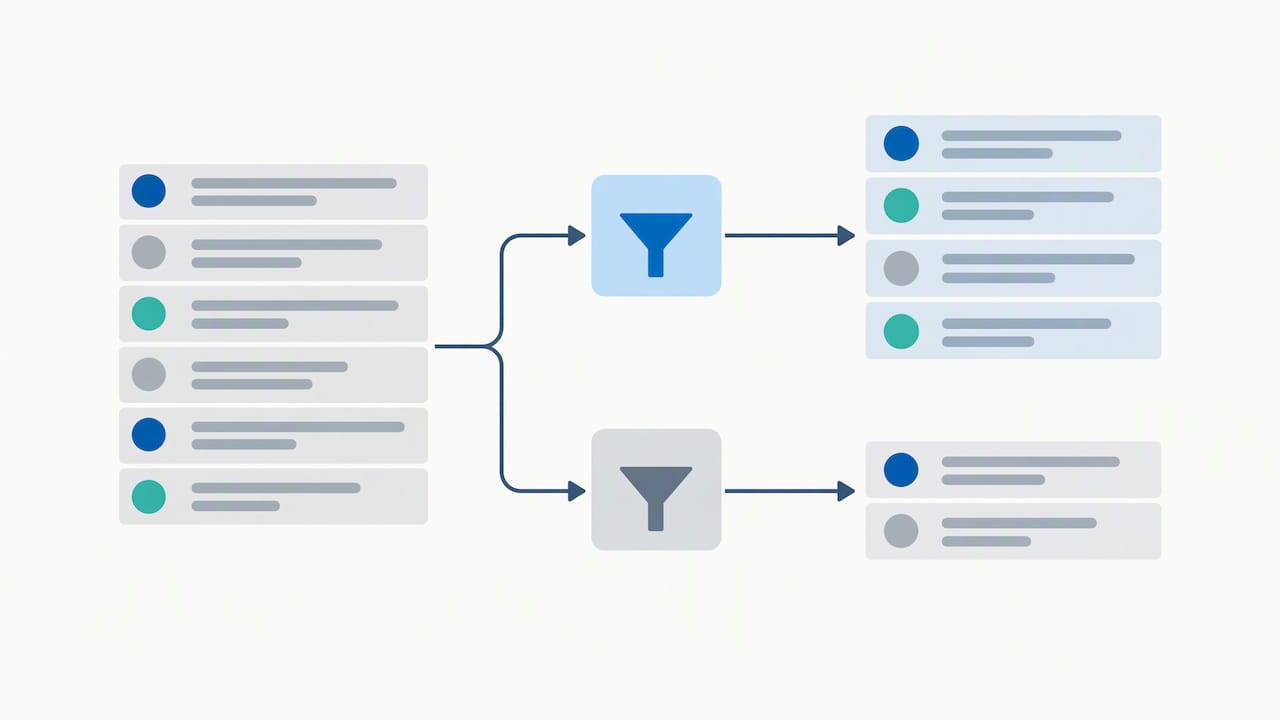
- Order matters: Xero checks rules top to bottom, so put specific, narrow rules above broad catch-all ones.
- Test a rule by filtering recent statement lines for the text or amount pattern it targets, then confirm the match looks right.
- Archive or delete a rule once the supplier, customer or payment pattern it covered stops recurring.
If a past transaction was miscoded, correcting the rule will not fix it retrospectively. You’ll need a journal entry or a manual edit to put that transaction right.
Best practices and common mistakes with bank rules
Good governance keeps rules working for you rather than quietly creating errors across hundreds of transactions.
- Name every rule with enough context that a colleague understands its purpose at a glance, not just “Rule 1”.
- Favour narrow, specific conditions over broad “contains” matches that risk capturing unrelated payments.
- Reconcile at least weekly, since more frequent checks catch misapplied rules before they accumulate, a cadence Xero itself recommends.
- Review for VAT miscoding, especially where a supplier occasionally issues zero-rated or exempt invoices alongside standard-rated ones.
- Check for duplicate or overlapping rules that fire on the same statement line, since only the first match in the list applies.
Pro Tip: Set a recurring calendar reminder to audit your bank rules list every quarter: suppliers change bank details more often than you’d expect.
Bank rules and Xero’s JAX automation for MTD-ready records
Bank rules are one of four reconciliation methods Xero’s automation engine, JAX, draws on: Rule, Match, Memory and Prediction, as set out in Xero’s bank reconciliation software guidance. When JAX is confident in a match it reconciles automatically; lower-confidence lines are left for manual review rather than guessed at.
- Every automated reconciliation action is logged in an audit trail, supporting Making Tax Digital record-keeping requirements.
- Low-confidence matches and unusual transactions still need a human check before they’re accepted.
- VAT treatment on automated matches deserves a second look, particularly for mixed-rate suppliers.
One JAX uses four distinct matching methods (Rule, Match, Memory and Prediction). This means a bank rule is only one input into a wider automated system, not the whole mechanism.
When an accountant should set up your bank rules
In my view, DIY rule-building works fine for straightforward, single-rate businesses, but it starts to strain once you’re juggling multiple VAT treatments, several entities or a mix of payment types. That’s when a bookkeeping partner or outsourced finance director earns their keep, maintaining rule governance as transaction volume grows. If you’re setting up Xero from scratch, our guide to Xero setup for startups is a useful next stop.
— Rahamut
Xero bookkeeping support
We set up and govern Xero bank rules as part of our wider bookkeeping and accounting support, so your reconciliation stays accurate as transaction volume grows rather than quietly drifting into VAT miscoding.

For businesses that want ongoing oversight rather than a one-off setup, our outsourced finance director service keeps rules, cash flow and reporting aligned as you scale. Compare our Core Services, Blue Plan and Black Plan to find the right level of support, or get in touch to arrange a review of your current Xero setup.
FAQ
How do I set up a bank rule in Xero?
Open Reconcile or go to Bank Rules under Manage Account, choose Spend, Receive or Transfer, then set matching conditions and the contact, account code, tax rate and tracking the rule should apply. Test it against recent statement lines before relying on it, following the steps in Xero’s create a bank rule guidance.
What are the five steps of bank reconciliation?
Xero frames reconciliation as an eight-step process, covering comparing statement lines against your ledger, matching or creating transactions, applying rules where relevant, investigating discrepancies and confirming the final balance. Reconciling at least weekly keeps errors from accumulating.
What are bank rules in accounting software?
Bank rules are saved conditions that automatically categorise recurring bank transactions, filling in the contact, account code, tax rate and tracking category whenever a statement line matches. They apply to Spend, Receive and Transfer transactions and speed up routine reconciliation.
Is there a limit to how many conditions a bank rule can use?
Xero allows multiple conditions per rule, combined to narrow down exactly which statement lines should match. The precise limit isn’t publicly listed, so check the current options directly within your Bank Rules setup screen.
Does editing a bank rule change past reconciled transactions?
No, editing or deleting a bank rule has no effect on transactions already reconciled under it, as confirmed in Xero’s guidance on how to edit or delete a bank rule. Any prior miscoding needs a separate journal entry or manual correction.